
MALOCH Keeping a Party Together Between Games: Guide
MALOCH keeping a Party together between games starts with Roblox Party. Learn how to invite friends, switch games, and regroup for your next office escape.
Jump to

MALOCH Keeping a Party Together Between Games: Start Here
Keep your friends connected when the office escape ends. MALOCH keeping a Party together between games starts with an active Roblox Party, which helps your group move between experiences without tracking everyone down again. The essentials of MALOCH keeping a Party together between games are simple: invite your friends, select Join with Party, and keep the active Party open while you decide what to play next.
Roblox Party gives your group a connection that continues between games. Any active member can choose an experience, and everyone receives an invitation to join it. Members can also play something different while remaining connected to the Party.
That flexibility matters when your group wants different things after a tense run. Someone can take a break from MALOCH while everyone else prepares another attempt, without leaving the shared group conversation.
Keep these limits and distinctions in mind:
| Feature | What it means for your group |
|---|---|
| Party capacity | Up to 6 users can join one Party. |
| MALOCH server capacity | A server supports up to 20 players. |
| Active Party membership | You can actively participate in one Party at a time. |
| Game selection | Any active Party member can choose a game. |
| Switching experiences | Members receive invitations through Join with Party. |
The six-person Party limit and MALOCH’s 20-player server limit serve different purposes. Plan your connected Roblox Party around the smaller limit.
Keep your expectations focused on the Party controls: they organize invitations and co-play across Roblox. Once you enter MALOCH, coordinate your office escape with the people who actually joined.
Create Your Party Before Entering MALOCH
For MALOCH keeping a Party together between games, get everyone into the active Party before starting your session. That gives friends a clear place to find invitations, discuss the next game, and reconnect after stepping away.
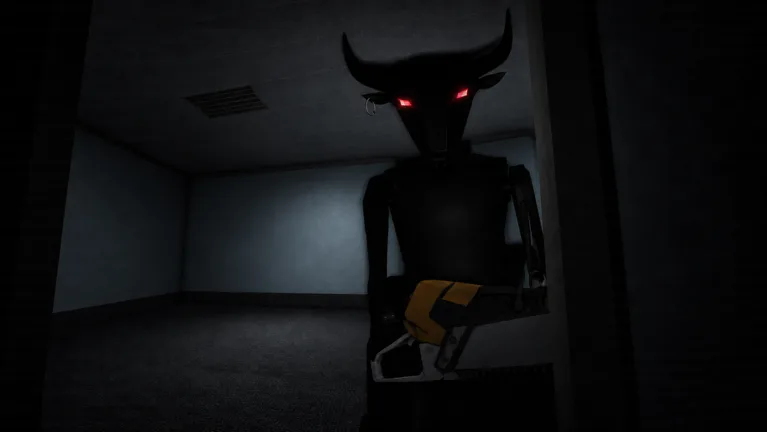 Image: Roblox / scary robot game
You can start from Roblox’s Chat tab or an existing conversation with a friend or group. Choose whichever route already contains the friends you want to play with.
| Task | Steps |
|---|---|
| Create a Party from Chat | Open Chat, select Start Party, add friends, and select Start. |
| Start from an existing conversation | Open a friend or group chat and select Start in the top-right corner. |
| Accept an invitation | Select Join in the invitation notification. |
| Find a missed invitation | Open Chat, find the group with an active Party, and select Join. |
| Invite another friend | Open the menu from the Party sheet, select Add Friends, and choose the friend. |
Any active Party member can invite existing friends. You do not have to route every invitation through the person who originally started the group.
Before choosing MALOCH, check that everyone has joined the active Party. A conversation containing your friends and an active co-play session are distinct things: the active Party is what connects members for playing together.
Use this short preparation checklist:
- Add the people you want to invite to your Roblox friends.
- Keep the Party within its six-user maximum.
- Ask everyone to accept the invitation.
- Help anyone who missed the notification find Join through Chat.
- Agree on the next experience before someone selects it.
If a friend arrives late, use Add Friends from the Party menu. Keep the invitation inside the existing Party so the group continues coordinating in the same place.
You can open MALOCH on Roblox to find the experience. Use the active Party’s game-selection controls when you are ready to bring your group along.
Switch Games Without Losing the Group
The central habit for MALOCH keeping a Party together between games is using Join with Party whenever your group chooses its next experience.
 Image: Roblox / scary robot game
Any active member can initiate the switch:
- Open the menu from the Party sheet.
- Select Play.
- Choose the game your group wants.
- Select Join with Party.
- Have the other members respond to their invitations.
Your entire Party receives invitations to the selected game. Members retain the choice to join or play something else while staying connected.
Agree on who will make the selection before everyone starts browsing. Since any active member can choose a game, assigning that task to one friend keeps your next move clear. After a MALOCH run, ask whether the group wants another escape attempt or a different experience, then make the selection.
| Between-game situation | What Party allows |
|---|---|
| Everyone wants another game | An active member selects it through Play and Join with Party. |
| Someone wants to play separately | They can choose another game while remaining connected to the Party. |
| Someone leaves the active Party | The remaining members can continue playing together. |
| A former participant returns | They can rejoin or receive another invitation. |
| Someone misses the group conversation | Party chat supports messages between games, subject to communication settings. |
Leaving an experience and leaving the active Party are separate actions. To leave the active Party, you open it and select the red close button. That ends your participation in its shared co-play session, although you can still exchange asynchronous Party messages.
Keep the active Party open when you want to continue traveling with the group. If you deliberately leave it, rejoin before expecting to participate in the next group move.
Also separate “connected” from “playing the same game.” A friend can remain in the Party while playing elsewhere. Check who intends to join MALOCH before treating the whole roster as your escape team.
Coordinate Quietly Inside the Office
MALOCH keeping a Party together between games solves the coordination around your session. Inside the office, your group also has to manage a survival game built around being heard.
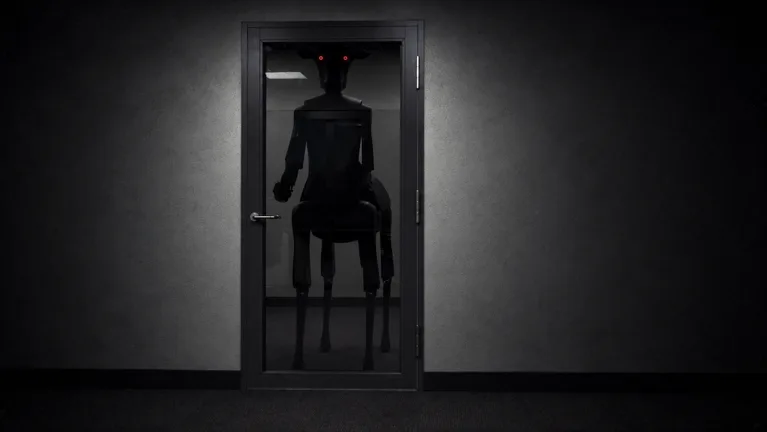 Image: Roblox / scary robot game
MALOCH traps you in an office building during a snowstorm, with something moving through the workplace. The threat can hear you. Noise management therefore deserves a place in your group’s planning alongside invitations and game selection.
Roblox Party supports private communication during play and between games. Depending on your account settings, you can use text chat or voice chat with friends. During an active Party, the Party icon in the top menu opens Friends Chat, and you can switch between Party Chat and Experience Chat through the game control menu.
Before entering the office, agree on concise callouts:
- Say where you are going. Tell friends before moving to another room.
- Keep directions short. Give the location or immediate problem before adding detail.
- Plan the next run between games. Use the time outside the office to discuss what the group wants to do differently.
- Watch your noise. Crouch when you need quieter movement, and avoid unnecessary jumping.
- Open doors deliberately. Doors create noise, but searching the building still requires moving through rooms.
Keep microphone use restrained around a threat that listens. Voice chat contributes to noise in MALOCH, so coordinate before speaking freely during a dangerous moment.
Communication access depends on age, Trusted friends settings, and region. Everyone can create or join a Party, but the available chat and voice features differ between accounts. Under-nine users are not eligible for chat; other age groups have their own communication permissions.
Choose a communication method everyone in your group can use. Check those permissions before entering MALOCH so your plan does not depend on a voice feature a friend cannot access.
Fix Invitations, Departures, and Party Settings
When MALOCH keeping a Party together between games gets interrupted, identify whether the problem is an invitation, active membership, or communication access. Each has a different control to check.
A missed notification does not require starting over. A departing member does not dissolve the remaining Party. And a friend’s missing voice option calls for checking communication permissions rather than repeatedly inviting them.
| Problem | Action to take |
|---|---|
| A friend missed the invitation | Open Chat, find the active Party, and select Join. |
| You need to invite another existing friend | Use the Party sheet menu, then Add Friends. |
| Someone left the active Party | Have them rejoin or send another invitation. |
| A member is playing a different experience | Agree on the next game and use Join with Party. |
| Party participation is disabled | Check Settings > Privacy & content maturity > Communication > Party. |
| Chat or voice is unavailable | Review age eligibility, Trusted friends settings, and communication permissions. |
Party privacy settings control who can add you to individual and group Parties. Selecting No one for the individual Party setting disables participation in Party and Party Chat; it also defaults the group Party setting to No one.
Check those controls when someone cannot participate. Keep their privacy preferences in mind when deciding whether to change a setting.
If someone intentionally leaves the active Party, continue with the remaining members. The departing player can still send Party messages and can return later by rejoining or accepting another invitation.
MALOCH is also in active development, with bugs expected. Keep your regrouping instructions clear: name the next experience, check active Party membership, and use the shared invitation controls.
Before the next attempt, confirm who is coming back, who is playing elsewhere, and who needs an invitation. That brief check keeps the next move understandable for everyone.
FAQ
How does MALOCH keeping a Party together between games work?
Create an active Roblox Party, invite your friends, and choose games through Play > Join with Party. Keep the active Party open between experiences. Members receive invitations to the selected game and can remain connected even if they choose to play elsewhere.
How many friends can join a Party for MALOCH?
A Roblox Party supports up to six users total. MALOCH supports up to 20 players per server. Use the six-user limit when planning who will travel together through Party.
Does everyone have to join the same game?
No. Members can play different experiences while staying connected to the Party. Agree on who is joining MALOCH before starting your next attempt, then send the game invitation through Join with Party.
Can someone rejoin after leaving the active Party?
Yes. Previous participants can rejoin or be invited again. The remaining members can continue playing together, and the person who left can still exchange asynchronous Party chat messages.
Continue with
 MALOCH Sending Friend Requests: Add Players on MobileMALOCH sending friend requests made simple: add players on Roblox mobile, accept invites, review pending requests, and prepare for quieter office escapes.
More in Multiplayer

MALOCH Accepting Friend Requests: How to Play Together
MALOCH accepting friend requests is handled through Roblox. Learn how to accept requests on desktop and mobile, fix pending invites, and plan the next run.

MALOCH Can You Play Solo? Survival Tips Before You Go
MALOCH can you play solo? Learn how solo runs work, manage noise, find hiding spots, and handle chases in this Roblox horror game before you head inside.

MALOCH How to Play With Friends: Join Your Next Game
MALOCH how to play with friends: group up through Roblox Party, join the same server, and coordinate quietly to escape the office building together today.
MALOCH Starting a Party: Join and Play With Friends
MALOCH starting a Party is easier with this guide. Invite friends, join together, check privacy settings, and prepare your group for a tense office escape.
Join the community
Official channels for news, updates and player help: